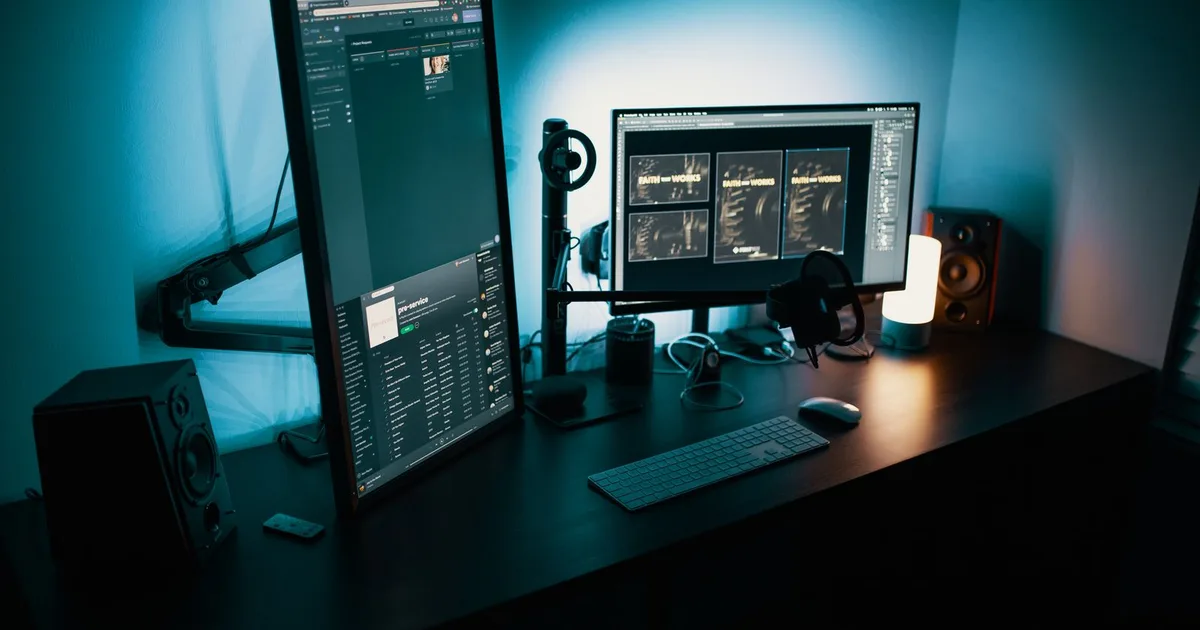
You do not need Photoshop for most image jobs anymore. Between free editors, one-click background removal, and smart compressors, the everyday tasks — resize, crop, clean up, shrink for the web — are faster and cheaper than ever. Here is the toolkit we actually use, and where the free options genuinely rival the paid ones.
General editing without the subscription
GIMP (free, open-source) is the long-standing Photoshop alternative: layers, masks, retouching, the lot, with a learning curve to match. For something friendlier, Photopea runs in the browser, opens genuine PSD files, and mirrors Photoshop’s layout so closely that tutorials transfer directly — it is our pick for occasional editing without installing anything. Canva handles the design side (social posts, thumbnails) with templates rather than pixel editing.
Background removal in one click
This used to be a fiddly manual job; now it is instant. remove.bg pioneered it and still gives clean edges on hair and fur in seconds (a few free images, then paid credits). Photopea and Canva now have their own one-click removers built in. For batches, the open-source rembg tool runs locally and free if you are comfortable with a command line. In our tests, results on simple subjects are near-perfect; complex transparent objects (glass, wispy hair) still occasionally need a manual touch-up.
Compressing for the web (without ugly artefacts)
Large images are the number-one cause of slow pages. Squoosh (free, from Google, runs in the browser) lets you compare original and compressed side by side and export modern formats like WebP and AVIF, which are dramatically smaller than JPG at the same quality. For bulk work, TinyPNG shrinks PNG and JPG files with barely visible loss. Converting a typical hero image to WebP commonly reduces its size by roughly 60–70% with no visible difference.
AI image tools: useful, with caveats
AI generators (DALL·E, Midjourney, Stable Diffusion) and AI upscalers are genuinely handy for concept art, placeholders and enlarging small images. Two honest caveats: check the licensing and usage terms before using AI images commercially, and treat AI “enhance” features as plausible reconstructions, not recovered detail — they invent, they do not reveal. Used with that awareness, they are a powerful addition to the free toolkit above.
Resolution, dimensions and DPI are three different things
These get used interchangeably and the confusion causes real problems at print time. Pixel dimensions are the actual grid of the image, such as 3000 by 2000. DPI is a number stored in the metadata describing how densely those pixels should be laid down on paper. Changing DPI alone changes nothing about the image data; it changes the intended physical size.
For screens, DPI is irrelevant and only pixel dimensions matter. For print, the two combine: a 3000-pixel-wide image at 300 DPI prints ten inches wide with good detail, while the same file at 72 DPI is instructing the printer to spread those pixels across nearly forty-two inches, which will look soft. Nothing about the file changed except the instruction.
Why upscaling disappoints
Enlarging an image cannot add detail that was never captured. Traditional upscaling interpolates: it invents intermediate pixels by averaging neighbours, which produces a larger but softer picture. Machine-learning upscalers do better by predicting plausible detail from training data, but they are guessing rather than recovering, and on faces or text that guess is sometimes confidently wrong.
Downscaling is the opposite and is essentially free in quality terms, which is why capturing at the highest practical resolution and reducing later is the right order of operations.
Stripping metadata before publishing
Photographs carry EXIF data recording camera model, exposure settings, the date and often the GPS coordinates where the shot was taken. Uploading a holiday photo is harmless; uploading a photo taken at home with location data intact publishes your address to anyone who inspects the file.
Many social platforms strip EXIF automatically on upload, but personal websites, file-sharing services and email attachments generally do not. Checking and removing metadata before publishing takes seconds with any image tool and closes an easily overlooked privacy gap.
Choosing a format without overthinking it
Photographic content with smooth tonal variation compresses well as JPEG or WebP. Graphics with flat colours, hard edges or transparency belong in PNG, where JPEG would produce visible artefacts around the edges. Logos and icons that must render crisply at any size belong in SVG, which stores instructions rather than pixels and therefore scales without loss.
If an image contains text, treat it as a graphic rather than a photograph regardless of how it was produced, because JPEG compression is unusually unkind to the sharp contrast that makes text legible.
Common questions
What is the best free Photoshop alternative?
GIMP for full desktop editing, or Photopea for a browser-based editor that opens PSD files and closely mirrors Photoshop's interface.
How do I remove an image background for free?
remove.bg gives a few free images with clean edges; Photopea and Canva have built-in removers, and the open-source rembg runs locally for free.
How do I compress images for a website?
Use Squoosh to export WebP or AVIF, or TinyPNG for bulk PNG/JPG. Converting to WebP often cuts size 60–70% with no visible quality loss.
Can I use AI-generated images commercially?
Check each tool's licensing terms first — they vary. Also treat AI 'enhancement' as invented detail, not genuinely recovered information.